
User Search (user & call details)
The User Search page allows you to search for individual users. Simply enter one or more characters from the user’s name or user principal name and press enter. The list shows a maximum of 50 results at a time. If you do not find the user you are looking for, try entering more characters or variations of your search.
If a user has more than one device, you will see a column showing you how many devices the user used recently.
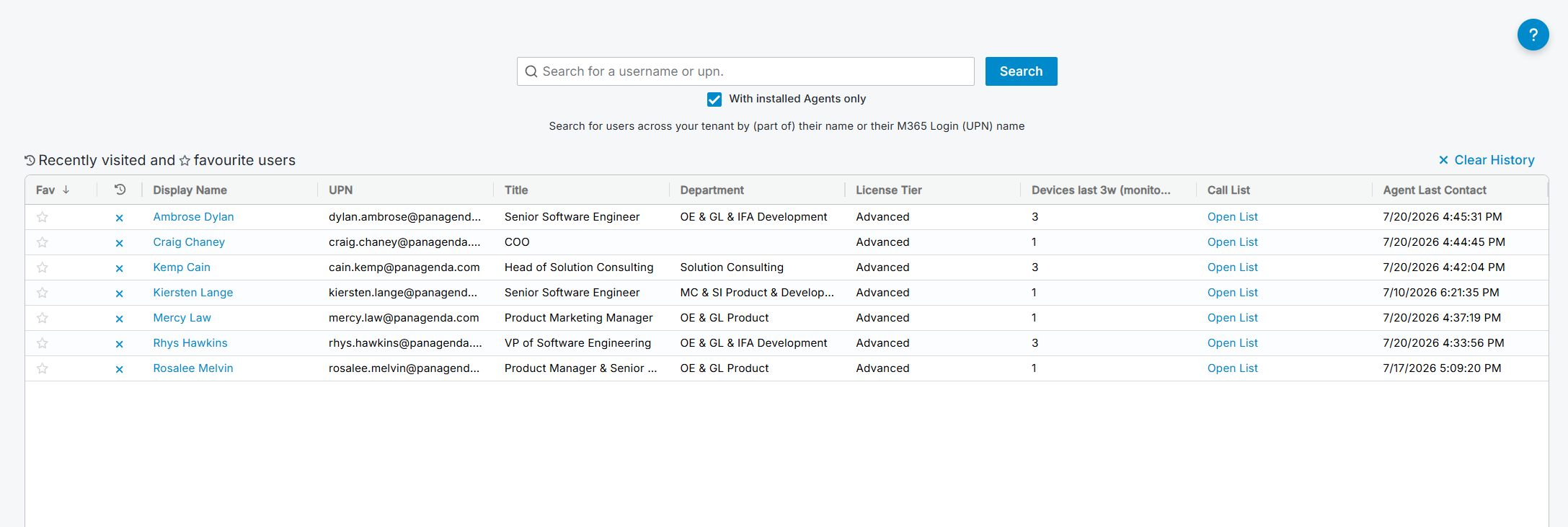
Filter options
Below the search field, there is a filter option that allows you to search only for users with an installed TrueDEM agent or for any user within the tenant.
With installed Agents only: When selected, the search result will show you only users who have a TrueDEM® Agent installed and where the search criteria matches a user.
Links to detail pages
Depending on the license the user has and whether they have the TrueDEM® Agent installed, you will see links to further information in the following columns:
Display name: The User Experience page gives you a filtered overview of the user experience for the selected user, including the user’s experience of the Microsoft 365 services in relation to the user’s historical experience. It can help pinpoint problem areas and allows you to see the experience for any device the user recently used.
Call List: (Only available with a TrueDEM® for Microsoft Teams license) This opens the Teams Call List on the User Experience tab where you can see all calls the user made in the last 21 days.
Reasons why a user does not show certain links can be:
- License restrictions (see above)
- The user has not made calls in the specified time period (In this case the call list link will be missing)
- Missing or non-functional agent (check the troubleshooting documentation for troubleshooting options)
Recently visited & Favorites
Recently Visited
On opening, the Search page shows users you’ve recently visited, even before you perform a search. This allows you to quickly return to users you’ve worked on or visit often without searching first.
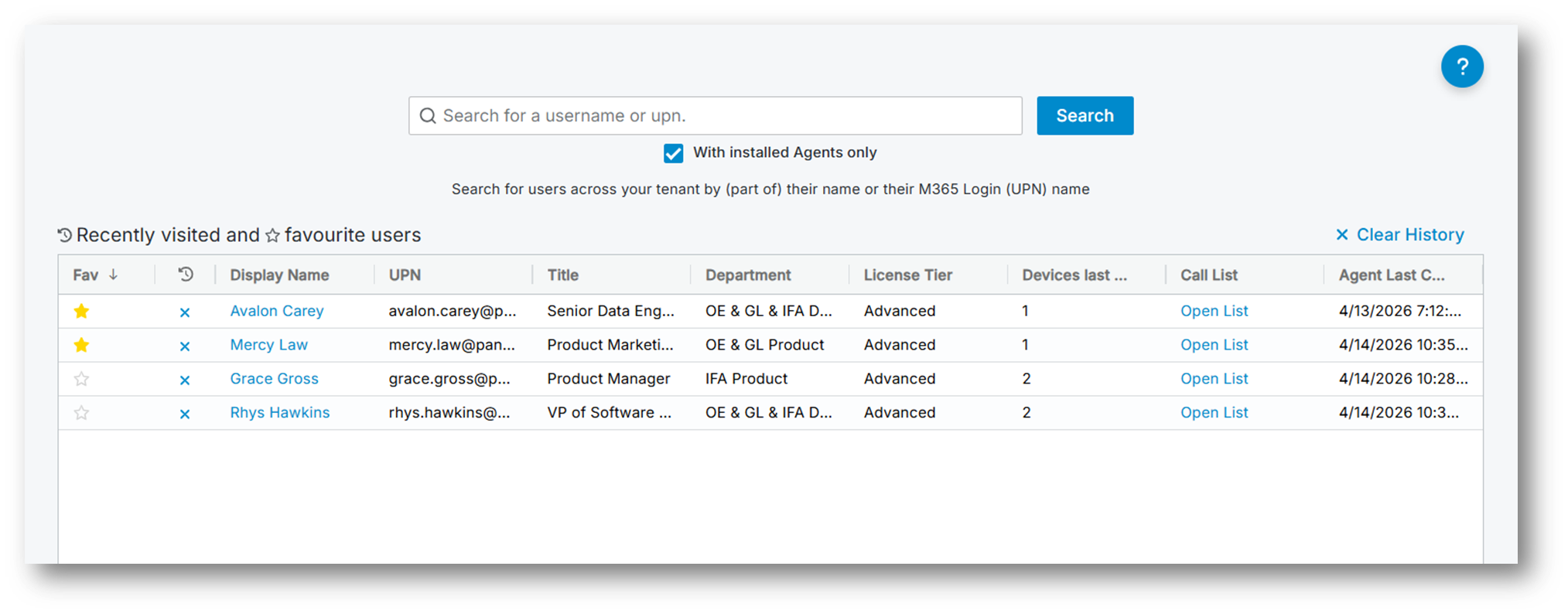
To clear a user from the list of recently visited users, simply click the X icon in the second column of the users line or clear all users from the Recently Visited list by clicking the option “Clear History” in the right upper corner.
Favorites
For users you regularly check or are actively monitoring, mark them as a favorite by clicking the star icon in the first column. Favorites always appear first (sorted alphabetically) when you open the Search page, and unlike ‘recently visited,’ they don’t disappear over time. To remove a favorite, click the star icon again.
Note! A user can be both a favorite and recently visited. These work independently of each other.