
Endpoint Manager Deployment (Intune)
TrueDEM Manager deployment via Microsoft Endpoint Manager
Step 1: App Information
- Sign in to the Microsoft Endpoint Manager admin center.
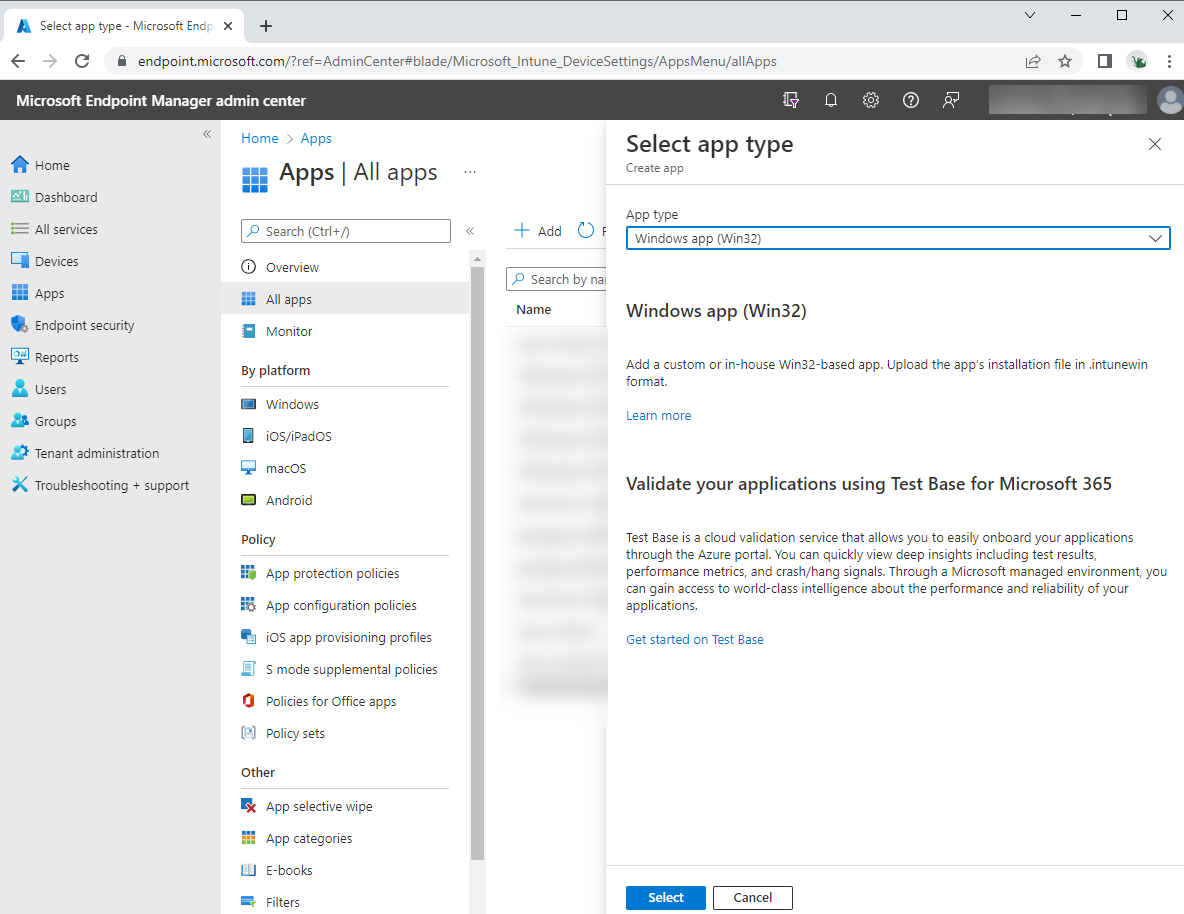
- Select Apps> Windows > Add.
- On the Select app type pane, select Windows app (Win32).
- Click Select. The Add app steps appear.
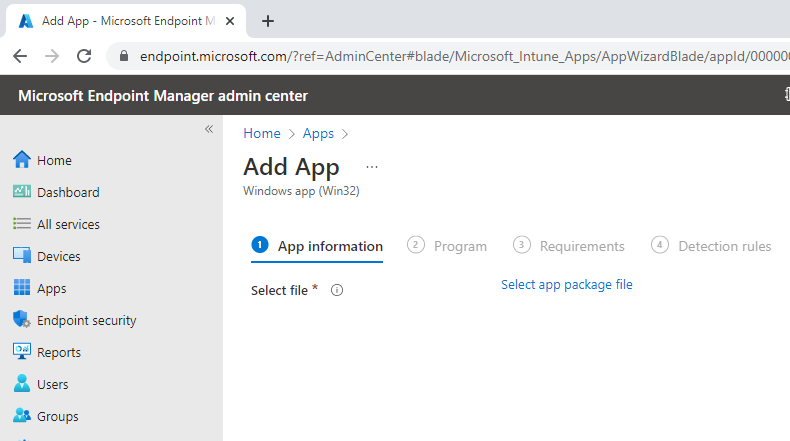
- On the Add app pane, click Select app package file.
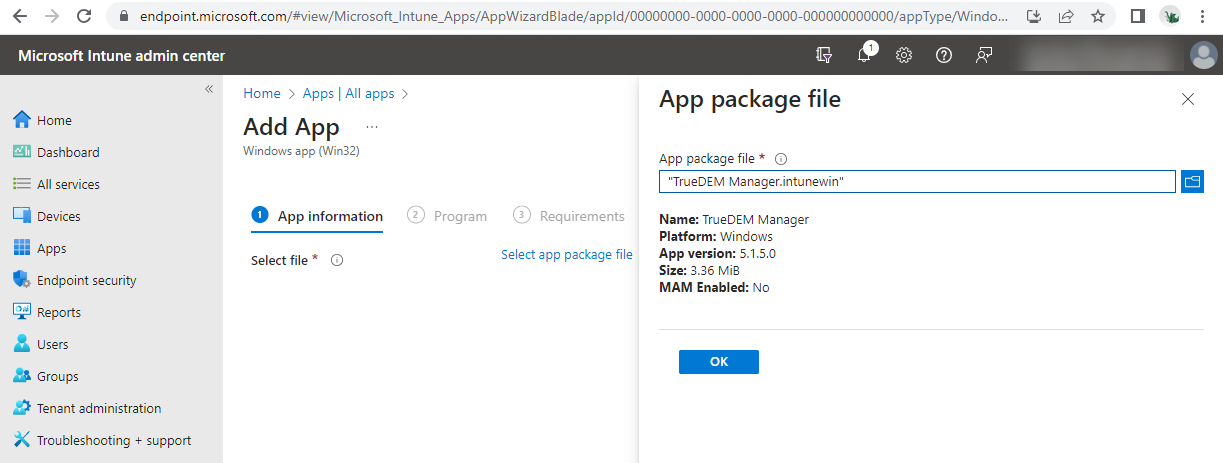
- On the App package file pane, select the browse button. Then, select the location where you have stored the panagenda-provided Intuneinstallation file with the extension .intunewin. The app details appear.
- When you’re finished, select OK on the App package file
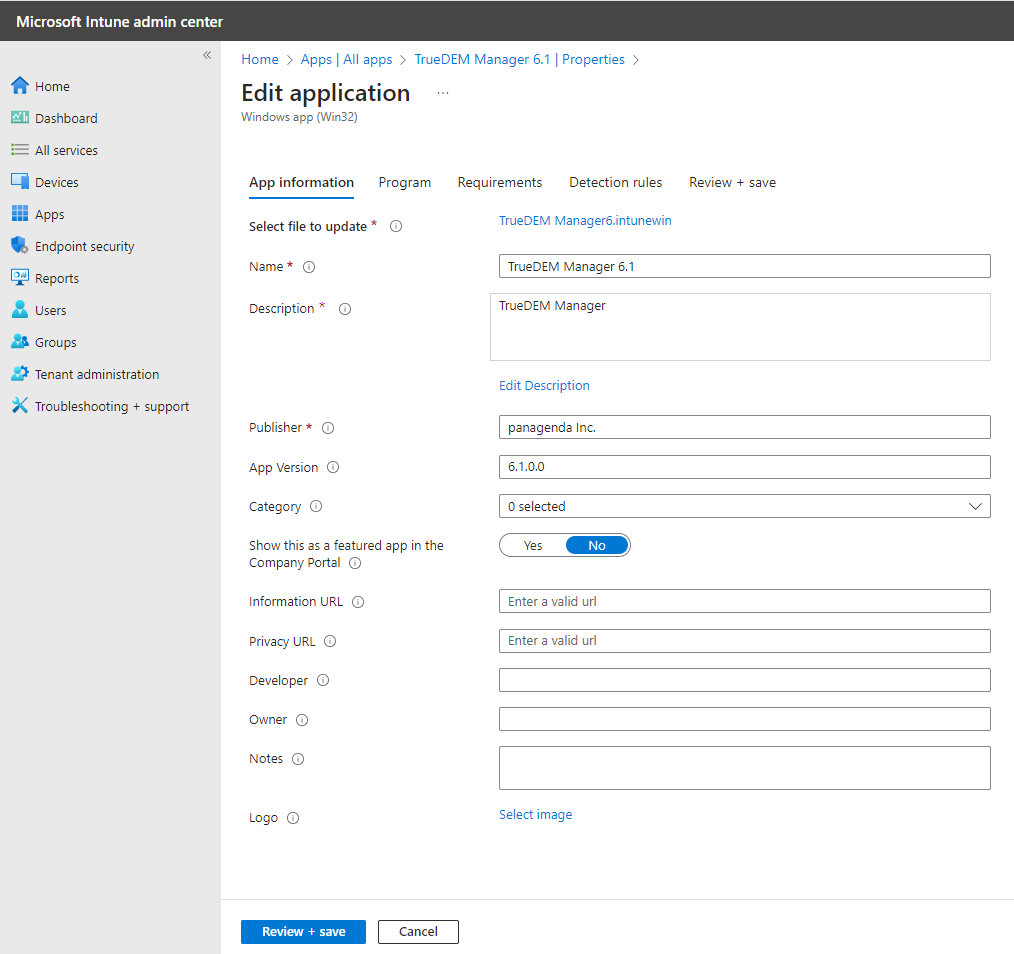
On the App information page, add the details for your app. Some details will be already filled in for you; do not change the prefilled info.
- Name: This will be filled in for you
- Description: This will be filled in for you
- Publisher: Enter panagenda Inc.
- App version: This is the Installer Version number of TrueDEM MAnager. Currently this is v6.1.0
- Category: Leave blank
- Show this as a featured app in the Company Portal: Leave this as No
- Information URL: Leave blank
- Privacy URL: Leave blank
- Developer: Leave blank
- Owner: Leave blank
- Notes: Leave blank
- Logo: Leave blank
Select Next to display the Program page.
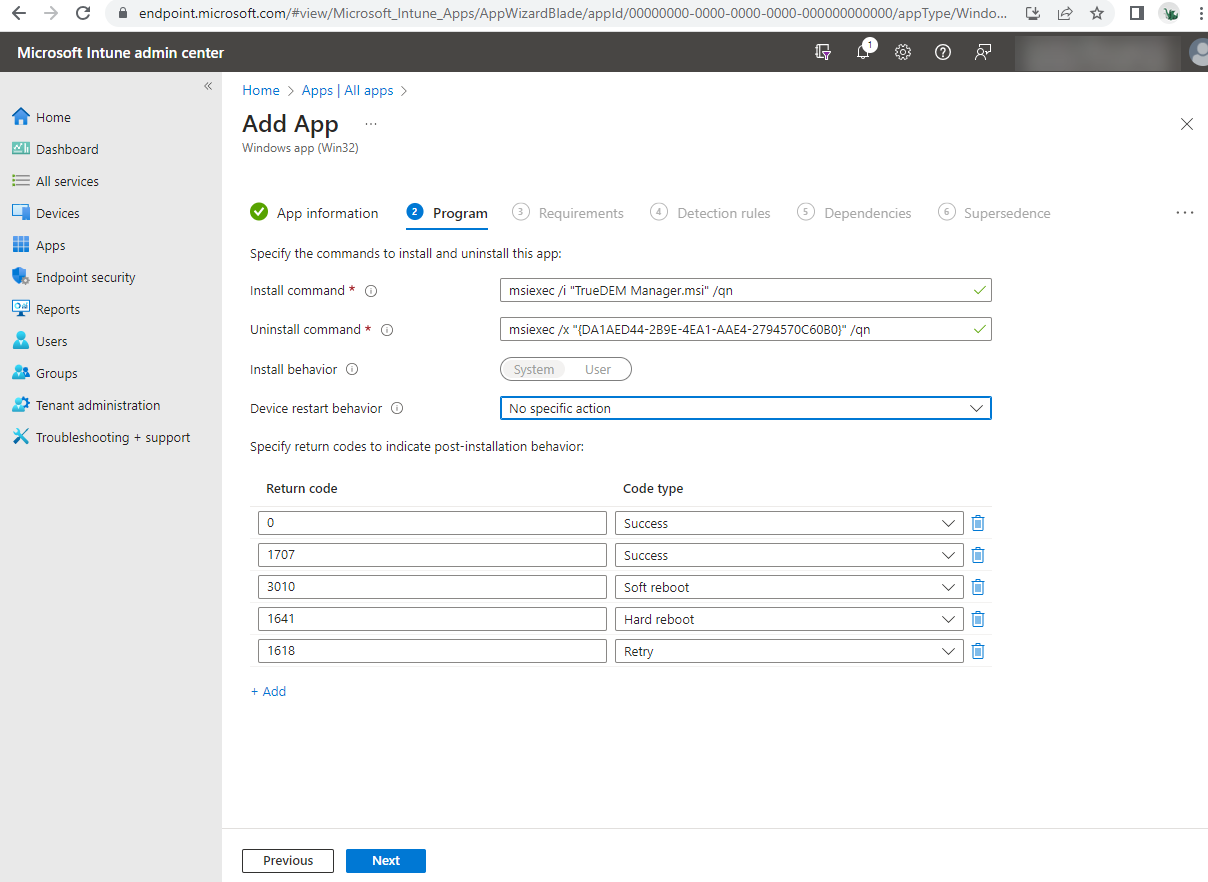
Step 2: Program
On the Program page you can keep all default settings as is with one execption. For the Device restart behavior please select: Select No specific action
Select Next to display the Requirements page.
Step 3: Requirements
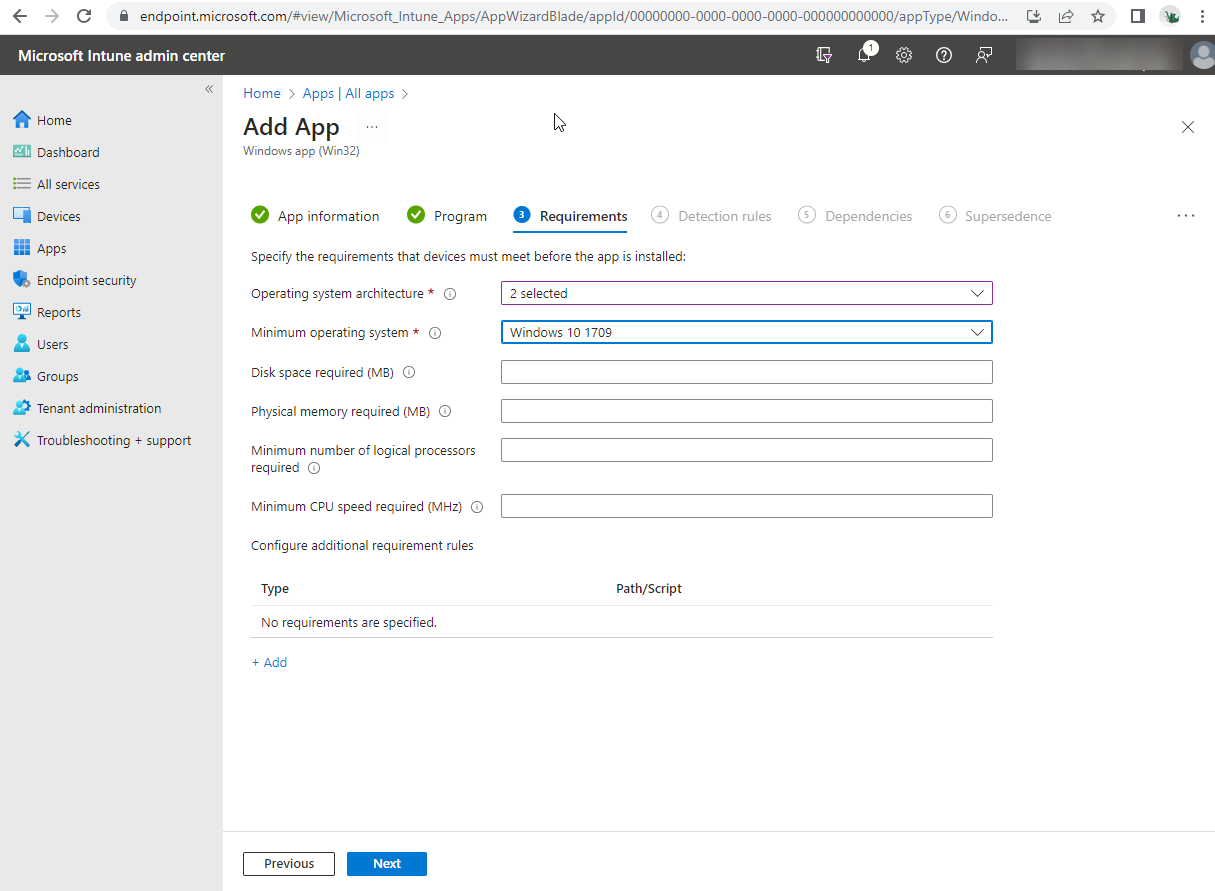
On the Requirements page, specify the requirements that devices must meet before the app is installed:
- Operating system architecture: Select both 32-bit and 64-bit
- Minimum operating system: Select Windows 10 1709 (This may change when Microsoft ends support)
- Disk space required (MB): Leave blank
- Physical memory required (MB): Leave blank
- Minimum number of logical processors required: Leave blank
- Minimum CPU speed required (MHz): Leave blank
- Configure additional requirement rules: Leave blank
Select Next to display the Detection rules page.
Step 4: Detection Rules
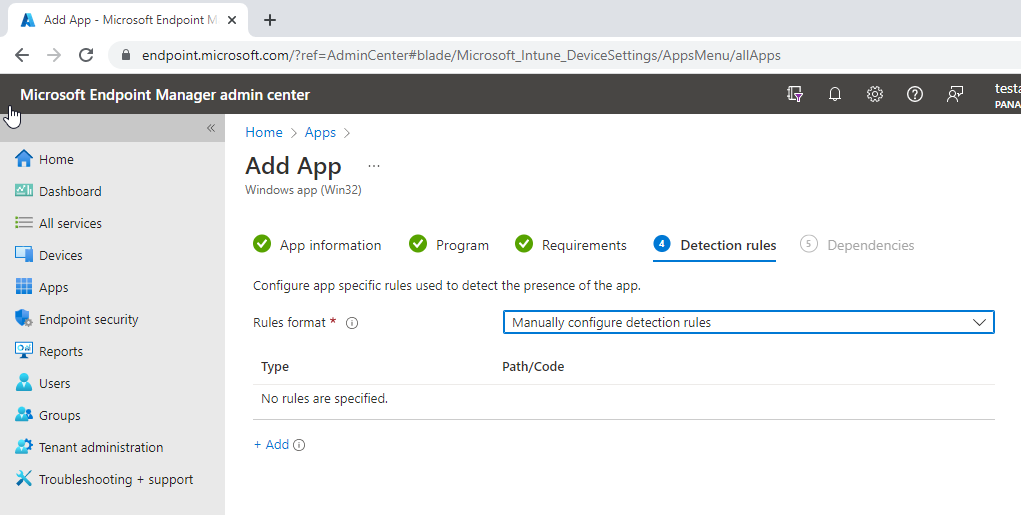
On the Detection rules pane, you will configure the rules to detect the presence of the app.
- Rules format: Choose to Manually Configure Detection Rules
- Click Add
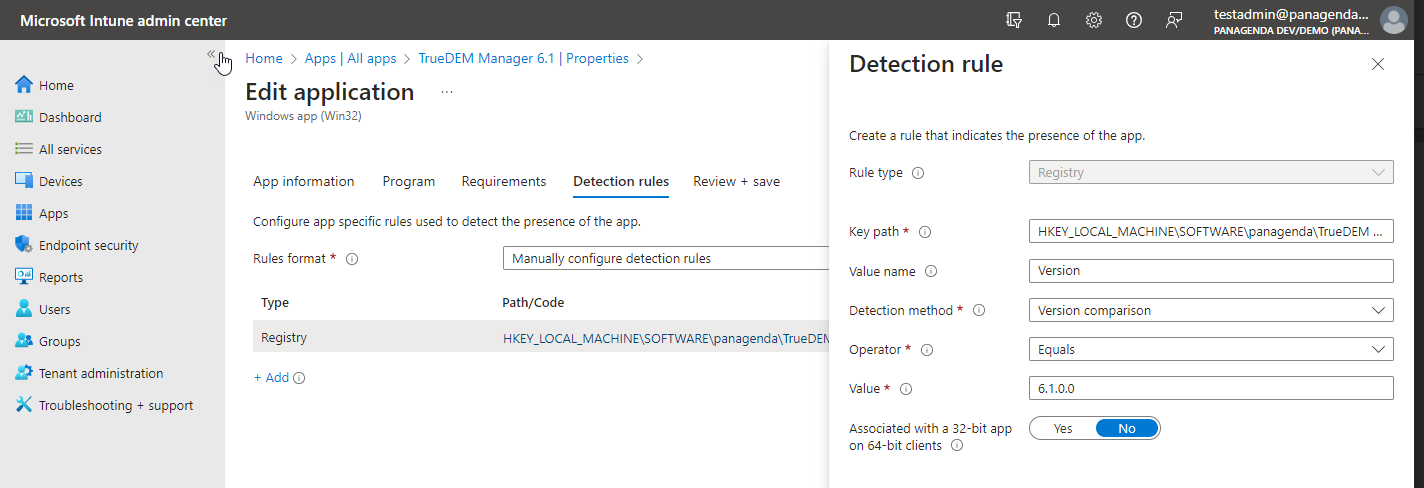
- Configure the detection rule as follows:
- Rule Type: Choose Registry
- Key path: Enter HKEY_LOCAL_MACHINE\SOFTWARE\panagenda\TrueDEM Manager
- Value Name: Enter Version
- Detection method: Choose Version comparison
- Operator: Choose Equals
- Value: 6.1.0.0 (this value depends which app vesion you add. current version is 6.1.0.0)
- Associated with a 32-bit app on 64-bit clients: Select No
- Click OK
- Rule Type: Choose Registry
Now keep clicking Next until you get to the Assignments page. There is nothing to configure on the Dependencies or Supersedence pages.
Step 5: Assignments
Select your desired groups and/or users to receive the app as you normally would.
Click Next and Review and Create your app.